CUSTOM_DOCUMENTS Step
Overview
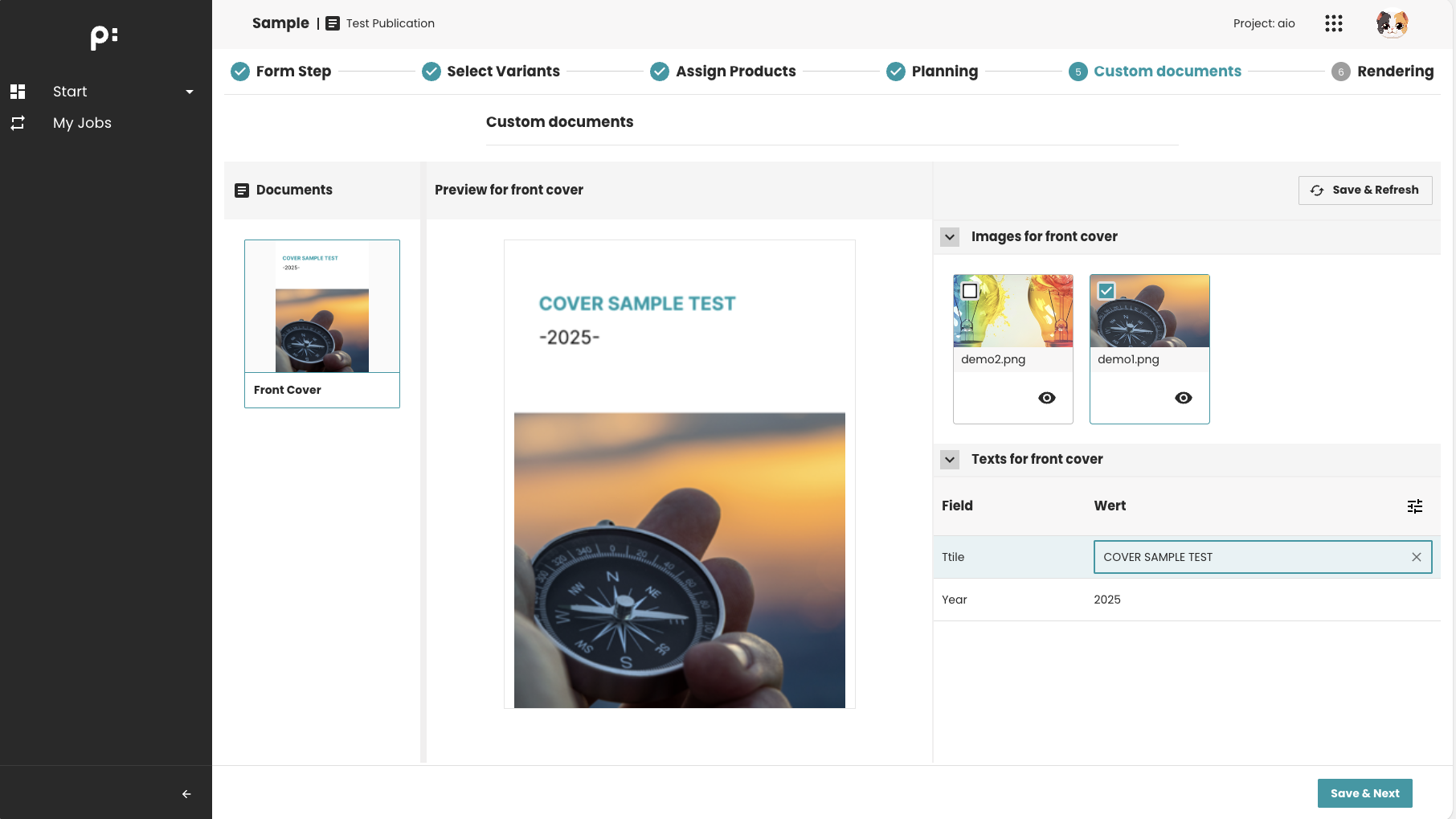
The CUSTOM_DOCUMENTS step allows users to customize document planning data (media asset and content metadata). It is used when a wizard requires users to adjust or refine document before continuing the workflow.
This step is especially useful for:
- Editing planning data for static documents
- Triggering a
Camundaprocess after saving
Prerequisites
- Documents must satisfy the configured document filter conditions in order to be displayed. If no document filter is configured, all documents under the publication will be available in this step.
- Each document displayed in the Customization step must contain at least one planning item with associated media assets.
- If text editing is enabled for a document, its content metadata entity must be properly configured in the ISON file.
Key Features
- Allows updating planning data for the selected document. For each document, one media asset and multiple content metadata fields can be modified. The number of editable content metadata fields depends on the configuration defined in the JSON file.
- The content metadata could be changed is configurable in the ISON file
- Can trigger a
Camundaprocess when the change is saved - Supports automatic refresh of the document preview after process execution
Behavior Summary
Planning Data Editing
Users can:
- Select one or more document entries
- Edit planning data for those documents: select the media assets or update the content metadata
- Save changes to backend
Save & Refresh Logic
If a process is configured via:
<parameter id="process_def_key">...</parameter>
Then:
- Saving metadata triggers the
Camundaprocess - UI waits for process completion
- Document preview refreshes automatically once the process finishes
Completion Behavior
If required=true:
- Users must save valid planning data before continuing
- If a process runs afterward, completion depends on process success
If required=false:
- Users may skip this step without making changes
Sample Configuration
Minimal supported configuration:
<wizardSteps>
  <wizardStep id="custom_documents_step">
    <label>Custom Documents</label>
    <type>CUSTOM_DOCUMENTS</type>
    <status>custom_documents_status</status>
    <parameters>
      <parameter id="content_metadata">content_metadata_entity</parameter>
      <parameter id="process_def_key">custom_documents_process</parameter>
      <parameter key="document_filter">custom_step</parameter>
    </parameters>
  </wizardStep>
</wizardSteps>
<documentFilters>
<documentFilter id="custom_step">
    <whiteListing>
        <arguments>
            <argument key="language_cbx">ALL</argument>
        </arguments>
    </whiteListing>
    <blackListing>
        <arguments>
            <argument key="w2p_ContentSelection">false</argument>
        </arguments>
    </blackListing>
</documentFilter>
</documentFilters>
When to Use This Step
Use the CUSTOM_DOCUMENTS step when the wizard needs:
- Modifying planning data of some static documents
- Preparing planning data before a PROCESS step
- Refreshing the document preview after planning data changes
Typical use cases:
- Updating content metadata/media asset on planning nodes
- Triggering a process to regenerate previews
Notes
content_metadatadefines which entity metadata is editable. If there are more than one entity is configured, it should be separated by a semicolon (;). For example:
<parameter id="content_metadata">entity_1;entity_2</parameter>
process_def_keyenables the Save & Refresh behavior.- The value of the parameter with key
document_filteris the ID of the tag<document_filter>